
how to add a link to an image?
how to add a link to an image?
1 reply
Best reply by Chris S
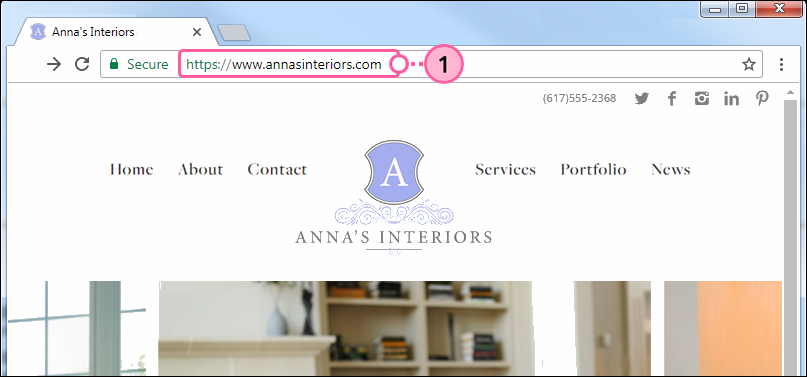
Copy the URL you want to link to your image.
Drag-and-drop the image that you want to turn into a link into your template.

Click on the image.
From the panel on the left, click the link icon and select Web Page from the drop-down.

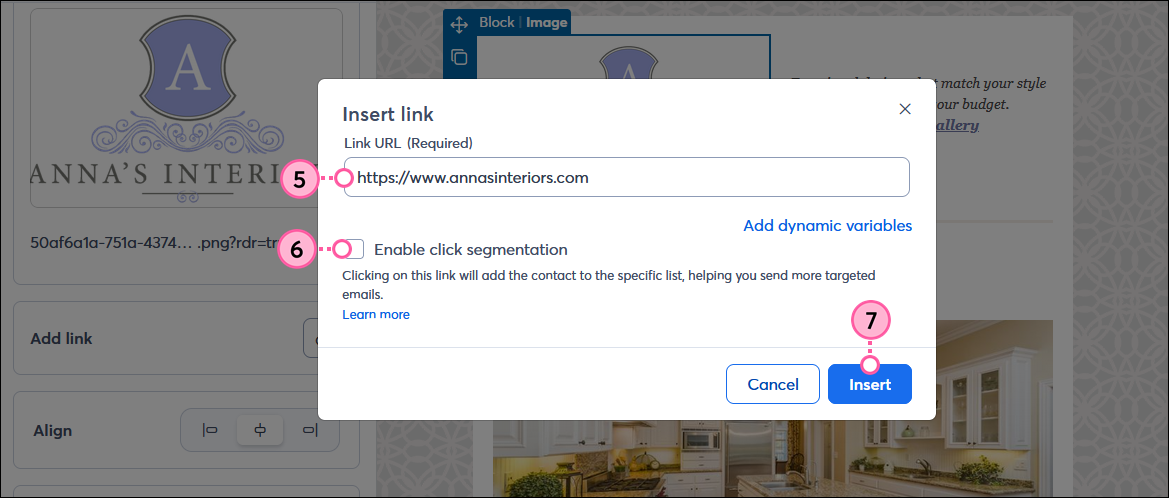
Paste the copied URL into the Link URL Field.
(Optional) Check the box to enable click segmentation to automatically add the contacts who click on your image to a specific list.
Click Insert.
Now when contacts click on the linked image, they'll be directed to the specific content you want them to see. You'll even see the image link clicks in your email's click report.
The world's largest virtual email marketing conference. November 12-13th.
