

Hey all,
Today's deep-dive: how to use Constant Contact's AI Content Generator to go from blank canvas to a ready-to-review campaign; email, social, and SMS, in about 10 minutes.
Quick heads-up: The AI Content Generator isn't available on every plan, so if you don't see it in your account, you may need to upgrade.
Minutes 1–3: Generate the email
Go to Assets > Templates (expand the left nav if you need to). In the template picker, depending on your account you'll see either a search bar at the top or a Generated tab
A few prompt tips that make a real difference:
Be specific about who you're sending to: audience matters more than topic.
Mention the goal: drive sales, RSVP, donations, opens
Include one detail that makes it yours:a date, a location, a season, an offer
For example: "We're having a grand opening event for our new cafe location on Winter Street"
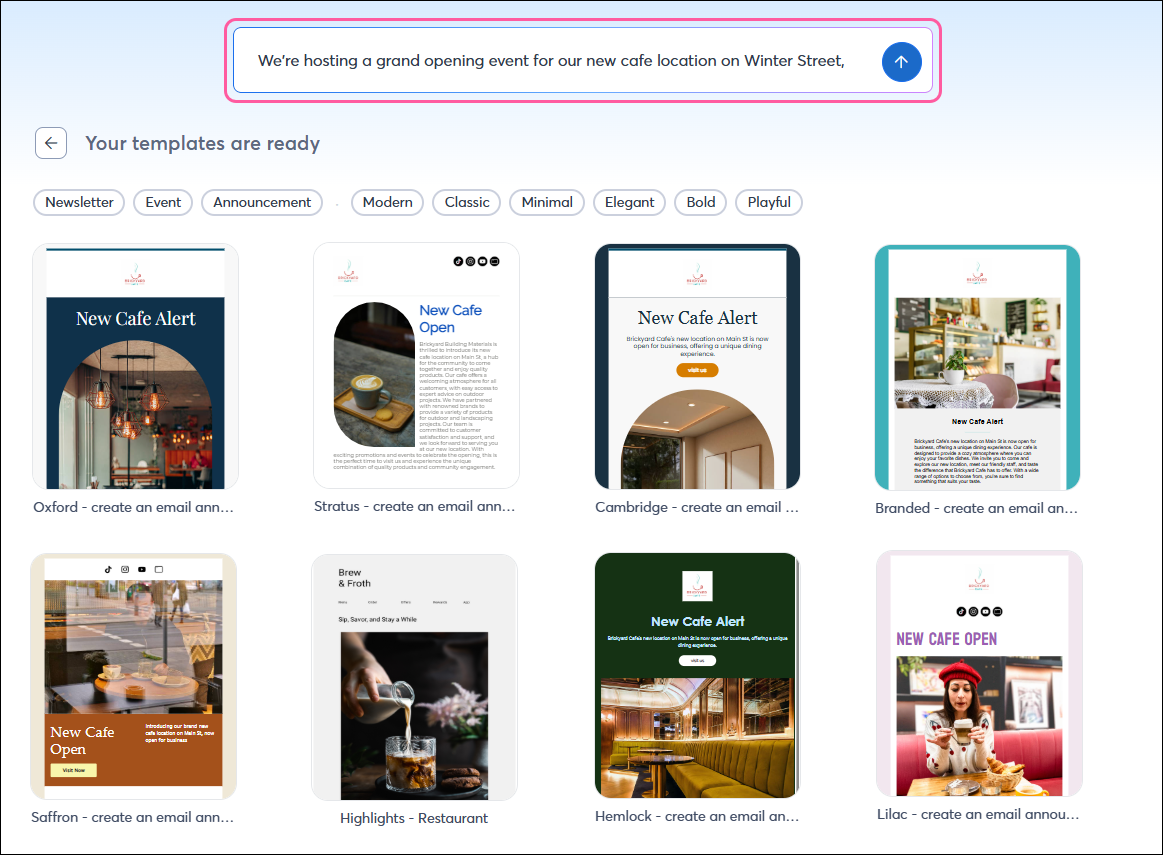
Pick the version closest to what you want and move on. Don't overthink it.
Minutes 4–6: Refine inside the editor
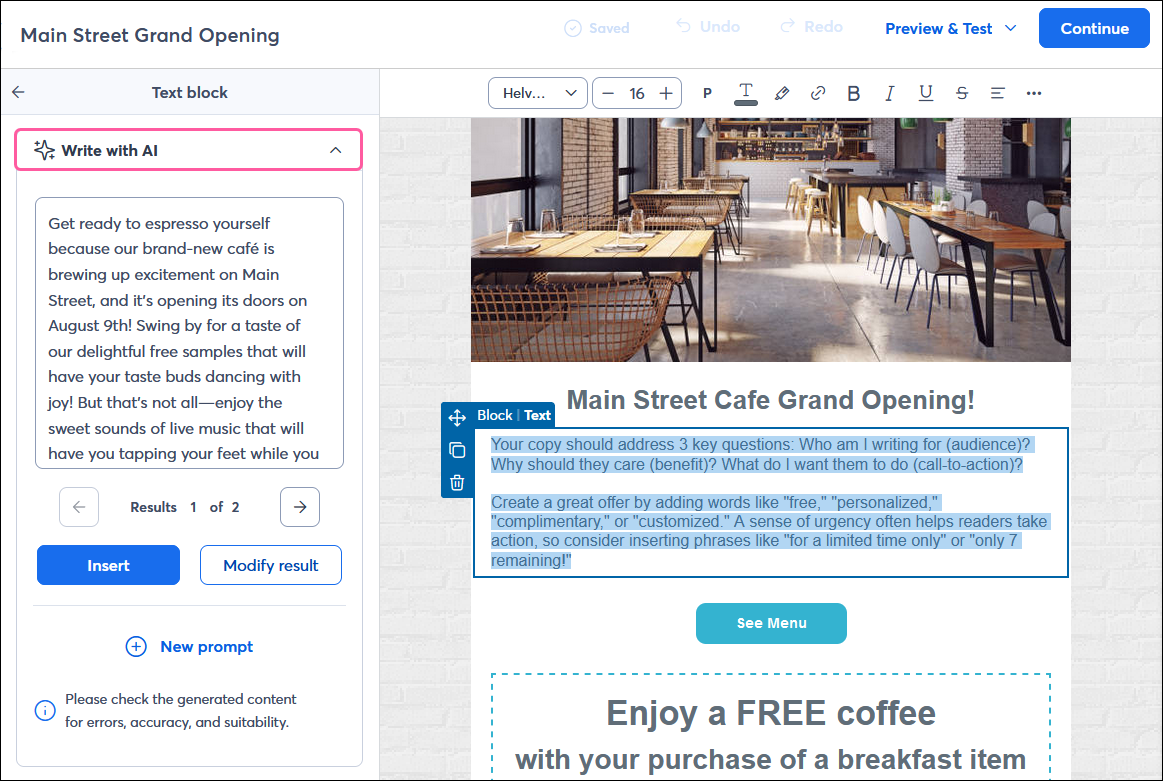
Once you're in the email editor, you can use AI on individual sections too. Click any Text block and you'll see a Write with AI option in the left panel. Use it to:
Tighten a paragraph that's running long
Rewrite the intro with a different tone
Generate alt copy for your CTA button
Add a P.S. with a softer hook
You can also pick a tone for the AI-generated content; casual, professional, friendly, etc. Choose the one that matches how you actually talk to your audience.
Minutes 7–8: Generate the social posts
Email's solid? Now amplify it. There are two paths:
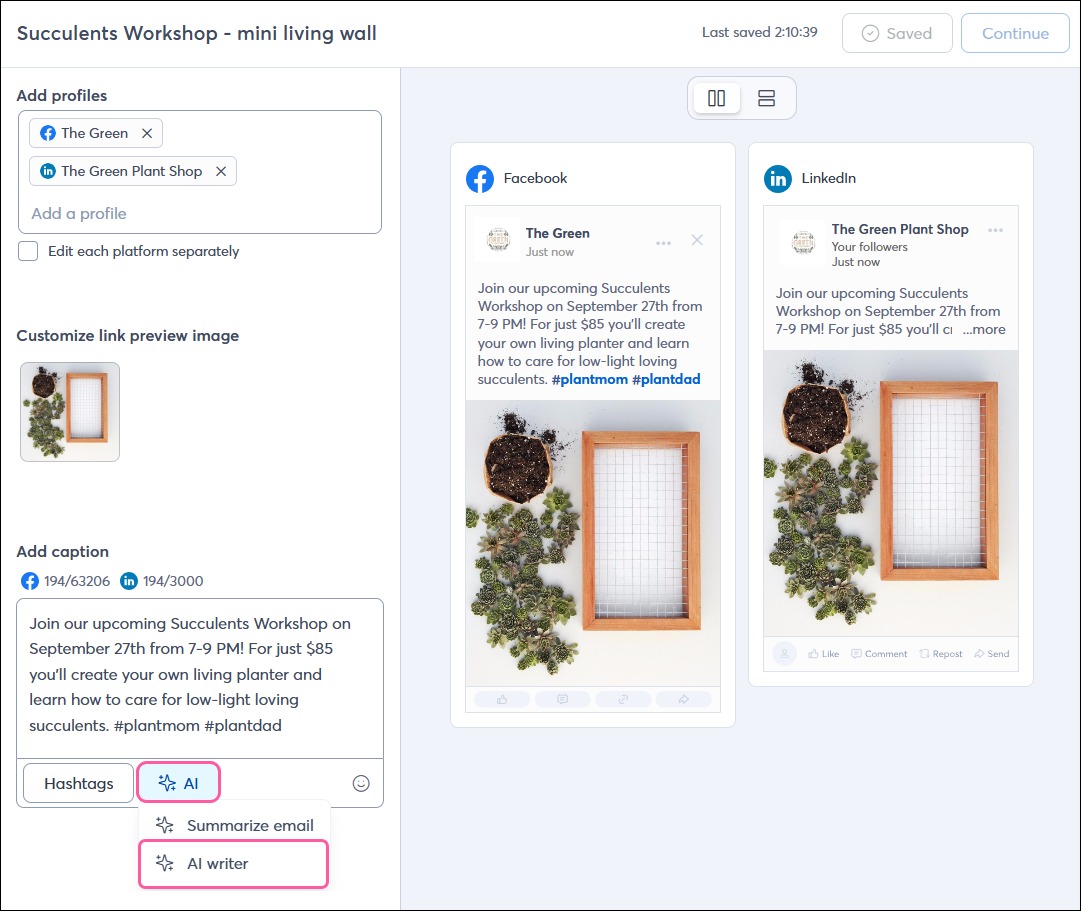
To share the email directly: In the share-on-social flow, click AI → Summarize email. The generator turns your email into a short, shareable post.
To create a fresh social post: From the social post editor, click AI → AI Writer, give it a few keywords about your campaign, and pick from the options.
I'd generate one variant per platform you post on. Facebook captions can run longer; Instagram works better with a hook line plus an emoji; LinkedIn leans more professional. Tweak accordingly.
Minute 9: Generate the SMS
If you have SMS set up, and Premium plan customers get 500 free SMS marketing messages per month, add a quick text to amplify.
From the SMS editor, click the AI symbol, drop in a few keywords, and it'll generate options that stay within the 160-character limit for a single text segment.
Minute 10: Final review
Before you schedule:
Read every AI-generated piece out loud — if it doesn't sound like you, edit it
Send a test of the email to yourself; open on mobile, check dark mode
Make sure your CTAs all link to the right place
Confirm the SMS includes the right opt-out language
A few honest caveats
Want it even faster? Campaign Builder (Create > Build a campaign) drafts the whole multi-channel campaign from your goal. And if you already work in Claude, the new Claude connector can draft and preview emails and social posts there.
AI gives you a draft, not a finished campaign. Even the best-prompted output needs your eyes on it. Specifically watch for: claims that aren't quite true about your business, generic phrases that don't sound like you, and CTAs that don't match what you're actually selling.
Brand voice matters more than the AI knows yet. It'll write competent, friendly marketing copy. It won't write your voice that's still on you.
Don't lean on it for everything. Use AI for the heavy lifting (structure, first draft, social variants) and your own brain for the parts that matter most subject line, hook line, the P.S., your actual story.
Try the 10-minute method on your next campaign and drop your prompt in the comments if you want feedback on sharpening it. Most creative prompts get featured in next week's recap.
What's the campaign you've been putting off because the blank page is scary?