


Keeping a tidy contact list ensures you aren't paying for the same contact twice and that your tracking data remains accurate. While our system automatically prevents duplicates if the exact email address is added twice, duplicates can still slip through the cracks, due to typos, name changes, or one person using multiple email addresses.
Here is how to find, merge, and clean up your records.
1. How to find duplicate contacts
You don't need to scroll through your whole list. You can find duplicates using the Search bar on the Contacts page. The search is flexible and looks through:
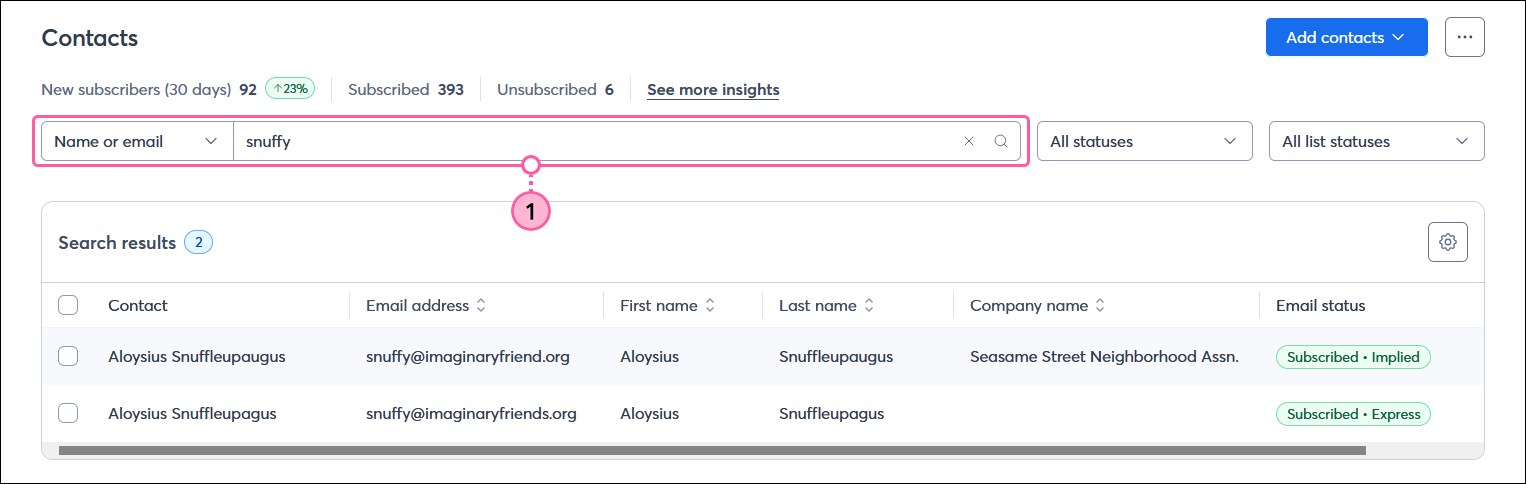
Names and Email addresses
Company names or Job titles
Location (City, State, Zip)
Custom Fields
Method A: Merging small numbers with a Manual Copy & Paste
If you only have a few duplicates to fix, the manual method is the fastest.
Open the Bad Contact: Find the contact you intend to delete the one with the typo or old email).
Copy Details: Copy any notes, phone numbers, or job titles you want to save.
Update the Good Contact Record: Go to the contact record you want to keep and paste the missing information in.
Delete the Bad: Once the Good record is perfect, delete the duplicate.
Method B: Merging large numbers with a Export & Import
If you have a long list of duplicates, don't do it one by one. Use a spreadsheet to update them in bulk.
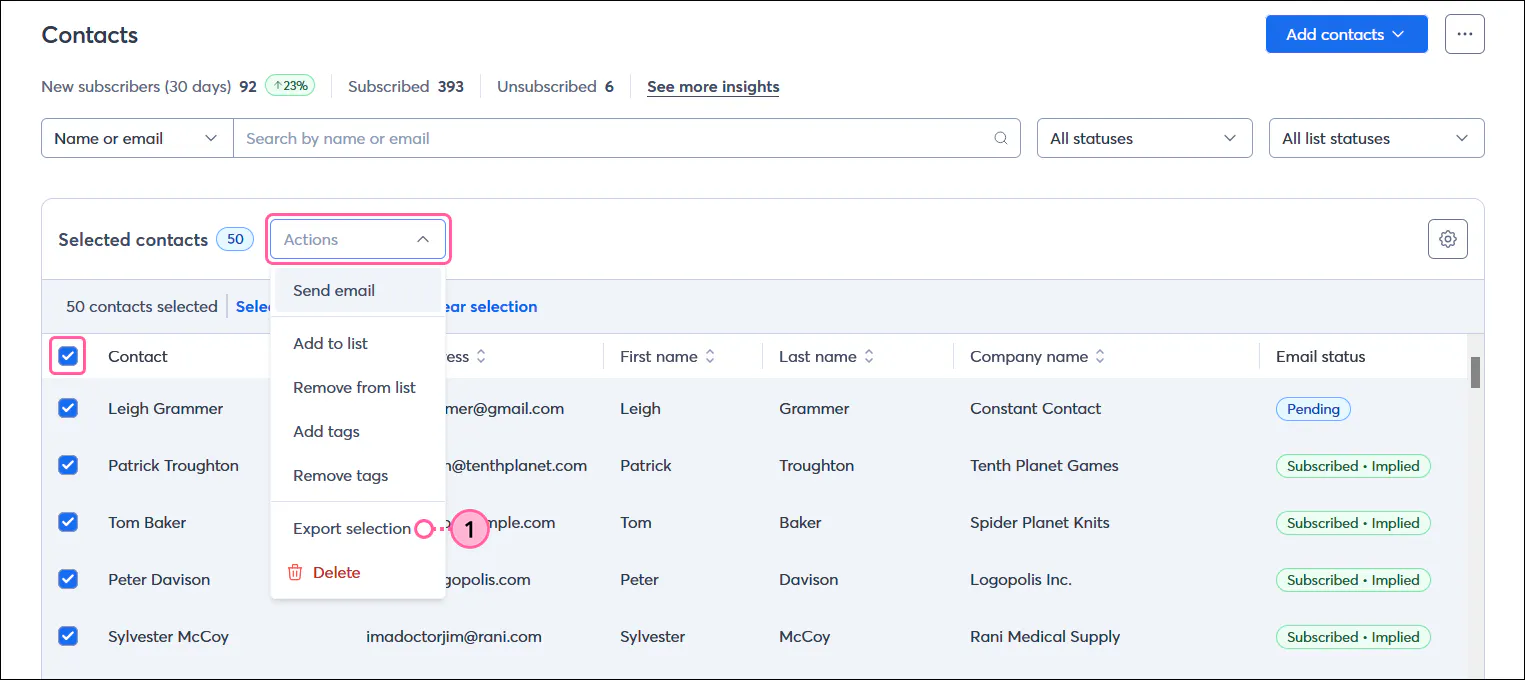
Export: Export all your contacts to a file CSV or Excel.
Clean in Excel: Sort your spreadsheet to find duplicates. Combine the info into a single row per person.
Mark for Deletion: In the spreadsheet, add a column named "Delete" and mark the rows you want to remove from the system later.
Import: Import the file back into the system. The system will recognize the email addresses and automatically update the records with your new, combined info.
Delete: Search for the contacts you marked with your "Delete" field and remove them in a batch.
3. How to merge entire lists
Sometimes the problem isn't the contact, but the list organization. You can combine two lists into one easily.
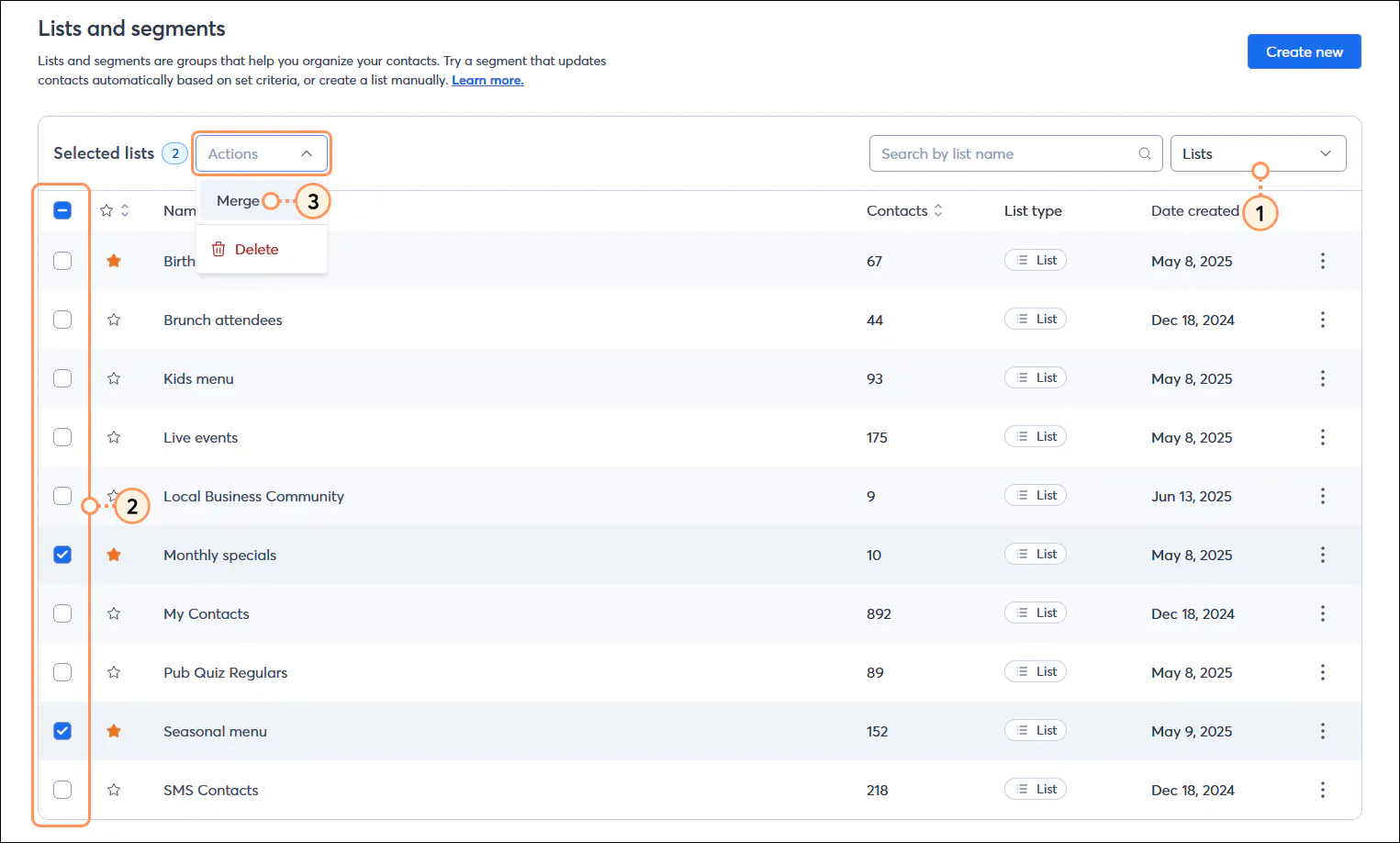
Go to Lists and Segments.
Check the boxes next to the lists you want to combine.
Click Actions > Merge.
Choose a destination:
Existing List: Select a list you already have.
New List: Type a name to create a brand new list.
