


Constant Contact provides valuable reporting for your email campaigns, and you have the flexibility to export these reports for detailed analysis or record-keeping. The reports, which offer insights into your campaign performance, can be downloaded as either a Microsoft Excel (.xls or .xlsx) file or a standard Comma Separated Values (.CSV) file.
The report gives you a recap on each email, including when it was sent, the campaign name, how many were sent, open rates, mobile vs. desktop opens, click-through rates, bounce rates, and unsubscribe rates.
That historical data is helpful for comparing campaigns – you can see trends, how different campaigns did, and even if your subject lines and content are working well. Saving them as a spreadsheet makes it easy to dig deeper and analyze stuff your way.
To export your email campaign reports:
From the main Constant Contact menu on the left side of your screen, click the Reporting tab.
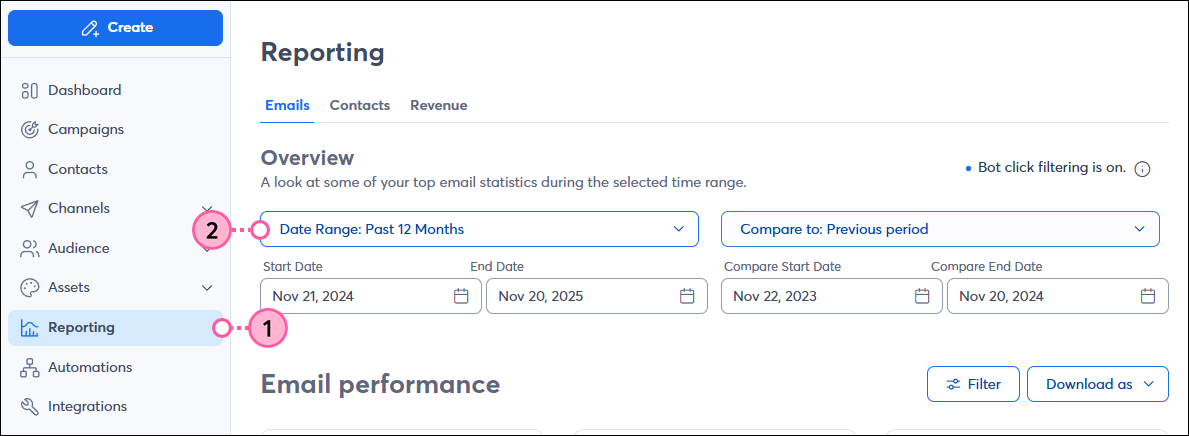
If you are looking for reports from a specific period, you can use the date range filter. Click the drop-down menu near the top of the Reporting page to select a pre-defined range (e.g., Last 30 Days, Last Quarter) or set a custom date range.
Scroll down the page until you find the Email campaigns table. This section lists all the individual email campaigns you have sent.
Click the checkbox next to the specific email or multiple emails whose reports you wish to export. You can select as many campaigns as you need for a consolidated export.
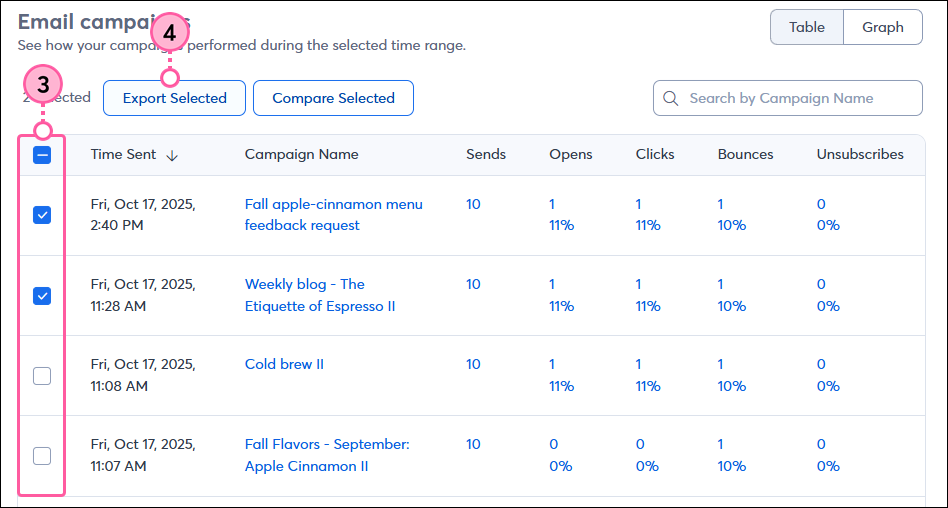
Once your selections are made, click the Export Selected button, usually located near the top of the Email campaigns table or at the bottom of the list. A dialog box will then appear, prompting you to choose your desired file format (Excel or .CSV) and the final download will begin.

