

Referring business is a simple way for you to generate a passive income from Constant Contact. And the best part? As a Partner, you can customize your referral link and landing page to drive trials or new accounts, as well as to recommend a specific plan. If you’ve already done the work of explaining the value and benefit of Constant Contact, you may want to use a Buy Now link. But, if your prospect is unsure and wants to take Constant Contact for a 30-day free trial, you can send them to a trial page. Once they start a trial, our sales coaches will reach out to help close the sale.
Remember, you only earn income from referrals if they are a paying customer for 95 consecutive days, so it pays to get your prospect excited about Constant Contact beforehand.
Finding and Customizing Your Referral Link
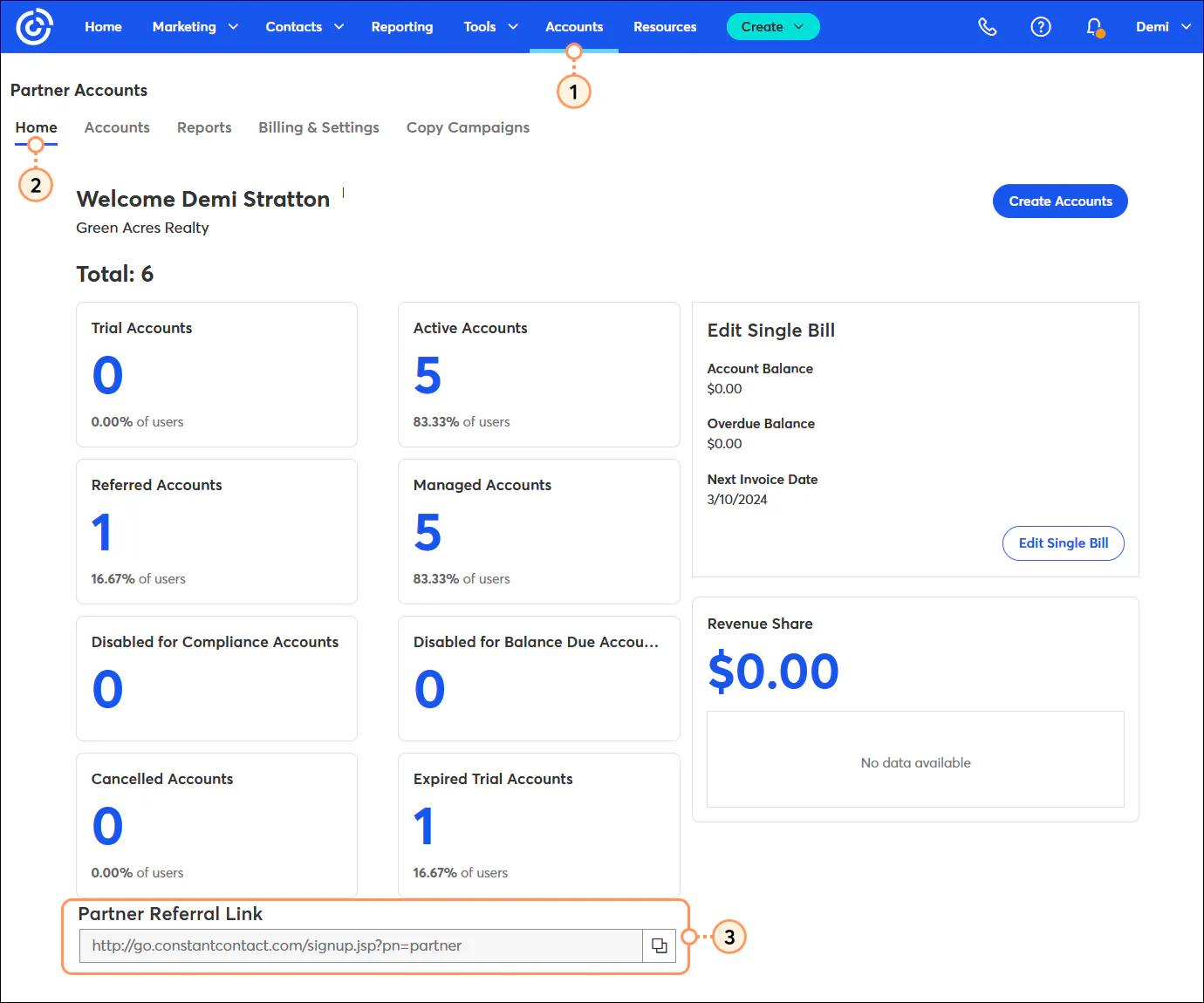
You can find your referral link at the bottom of your Home tab under Partner Accounts. This links to a landing page that dynamically shows your company name in the header text.
Customizing this page is as easy as editing the parameters in the URL. Before you get started, make sure to always view the finished URL in your browser’s incognito mode to view the customizations you’ve selected. Please also note that all parameters are case-sensitive.
Whether or not you want to customize this page, start with this URL: https://www.constantcontact.com/partner-offer?pn=partnername
Partner Name parameter: ?pn=partnername is the first parameter to edit. Replace "partnername" with your Constant Contact partner name which can be found at the end of your partner referral link located in the Accounts tab in your Constant Contact account. You need to copy your partner name exactly how it shows in your account because it is case sensitive. If you choose not to add any further customization parameters to this URL, you will see the default experience, showing all plan types and both the “trial” and “buy now” options.
Promo Code parameter: Occasionally we offer promotional codes. To automatically apply a code during checkout, add &promotionCode=CODE after your partner name.
Purchase Intent parameter: In order to show either a “trial” or “buy now” experience, add &intent=try or &intent=buy right after your partner name in the URL. For both, omit this parameter.
Plan Type parameter: This will let you choose what plan types you want on the page. Add &planType=BRONZE to show only our Lite plan, &planType=SILVER to show only our Standard plan, or &planType=GOLD to show only our Premium plan. If you wish to show all plans, omit this parameter.
Tip: You can also add ?pn=yourpartnername to the end of any Constant Contact URL so all accounts opened up after visiting the URL will be credited to your partnership. Your partner name is after pn= in your referral link.
Tips for Sharing Your Referral Link
Update your website. Make sure you include your referral link in your website. Consider setting up a services page that promotes Constant Contact, as well as the services you might provide around the platform. If you need help generating traffic to this page, consider using the SEO tool in your Partner account.
Get the word out with email and social posts. You can create your own emails, or use the customizable templates called “Referrals” under the Partner Marketing Tab in your Constant Contact account’s template picker.
Share in your email signature. In your transactional email signature, as well as in any newsletters you might be sending, include a signature block that includes ways to contact you, as well as your referral link.
Host a webinar. Certified partners get access to free content to present on behalf of Constant Contact. The best part is that it’s free to get certified, and you’ll get access to resources that will help drive your success as a Constant Contact certified partner.
Recommended: How to talk about Constant Contact

