

We know how important it is for your emails to look polished and professional, whether your subscribers are reading them at their desks or on the go. To help you achieve that perfect look, we’ve introduced new Mobile Image Size Controls to our email and landing page builders!
The Problem: No More "Forced Stretch"
Previously, our builder lacked numerical precision for image sizing, forcing you to "eye-ball" scales manually. More importantly, mobile devices would often override your desktop design, forcing all images to 100% width. This "forced-stretch" behavior could break your visual hierarchy, hide your Call-to-Action (CTA) by making the email too long, and make small logos look pixelated or out of place.
The Solution: Precision and Flexibility
You now have the exact control you need to design with confidence. With these updates, you can:
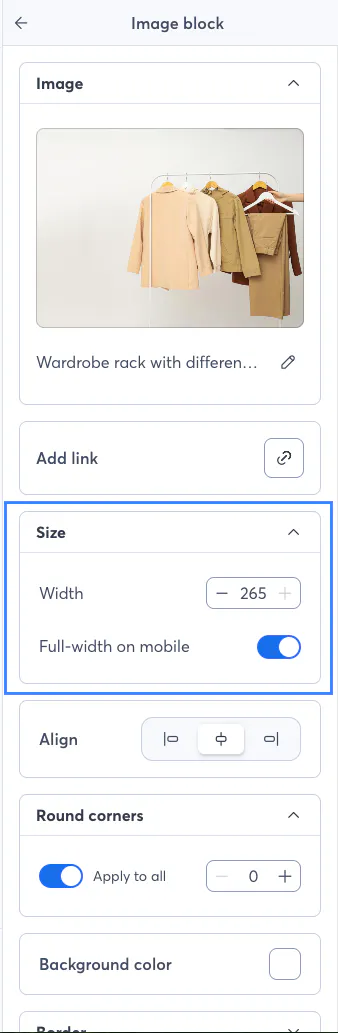
Set Exact Pixel Widths: Type in a specific pixel value to ensure your images are exactly the size you want—perfect for making side-by-side images match.
Independent Mobile Control: By default, mobile images will now match your desktop scale instead of automatically stretching to full-width.
Toggle "Full-Width" on Mobile: You can still choose to have specific images (like hero banners) span the full width of a phone screen with a simple toggle.
Best Practices & Use Cases
Logos and Icons
Desktop: Set to a specific pixel width (e.g., 150px) for a clean, branded look.
Mobile: Keep "Full-width on mobile" OFF. This prevents your logo from stretching across the entire phone screen and keeps your branding professional.
Hero Banners
Desktop: Use a larger width to grab attention at the top of your email.
Mobile: Turn "Full-width on mobile" ON. This ensures your main imagery makes a bold impact and is easy to see on smaller screens.
Trust Badges & Side-by-Side Images
Desktop: Use exact pixel values (e.g., 100px each) to ensure multiple badges are perfectly aligned and uniform, avoiding "visual jitter."
Mobile: Keep "Full-width on mobile" OFF so they remain small and tidy near your footer rather than stacking into a giant list.
How to Get Started
Ready to try it out?
Click on any Image Block in your email or landing page.
In the Size menu on the left-hand panel, use the Width field to type in your desired pixel size.
Use the Full-width on mobile toggle to decide if the image should stretch on mobile devices.
For a detailed step-by-step guide, check out our Knowledge Base Article: Resize an Image in an email for an optimal look on desktop and mobile.
We can’t wait to see the beautiful, precise designs you create! Let us know what you think in the comments below.

